Windows Desktop Demo
Portfolio Windows Desktop App is the client for managing & synchronzing files on a Personal Computer.
Install Desktop
The Portfolio 0.8 only come with a desktop client on Windows, requiring Windows 10 and above.
The Portfolio Desktop is installed by default if the synode service is installed on Windows; A standalone desktop version can be download and installed separately.
With both way of installation, setting the computer is identity is necessary.
Setup Portfolio Desktop
A fresh new installed Portfolio Desktop will show up directly the setting pages.
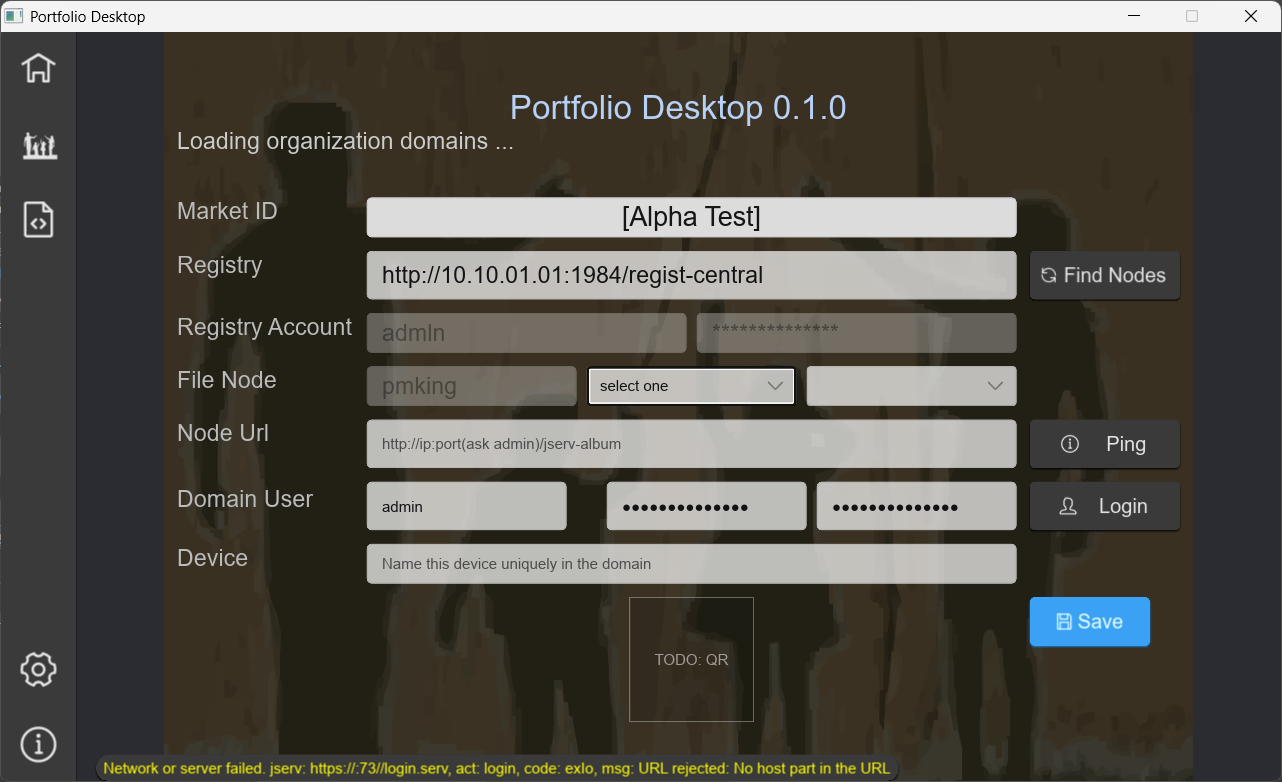
In the page above, you shouldn’t change the registry URL, and in v0.8, cannot change the registry account.
The file node, i.e. Synode is pointed to by community / domain / synode-id. Just select the synode you have started in the synode setup section.
Device field is this computer you would like to named, and must not be empty. Once the user logged into a synode, the device name can be saved domain wide, and is automatically synchronized across the domain on all nodes.
Start / Run Desktop (Windows)
Just Double Click, the exe file, album-gui.exe, in the unpacked folder. Or run in the unpacked desktop folder in command line terminal.
In 0.8 Demo version, there is no short cut or startup menu Item (then no need to unstall).
If there are error says cannot find an .ast.json or settings, that means the working folder is not the folder containing album-gui.exe.
About Volume
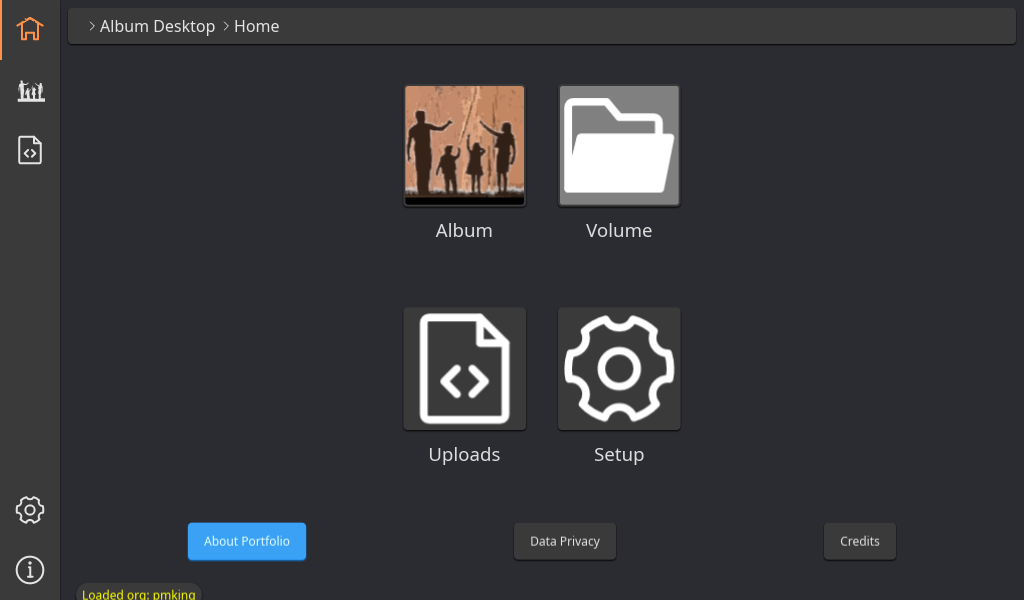
The home page provides a shortcut to open the local synode’s volume in file explorer.
If the Portfolio Desktop is installed as stand alone application without beside a synode, the Volume shortcut is disabled.
Warning
Don’t change data or files in the volume folder. Moving, modification of files will cause unspecified results.